如何使用Visual Studio Code调试Golang程序
最近想玩玩golang,同事安利了一个编辑器Visual Studio Code, 是用nodejs开发的,用起来十分趁手,如何配置golang的环境就不表了,网上帖子一大把,自行查阅。
今天只说说如何用VSCode的debug模式调试Golang:
在VSCode中打开你的
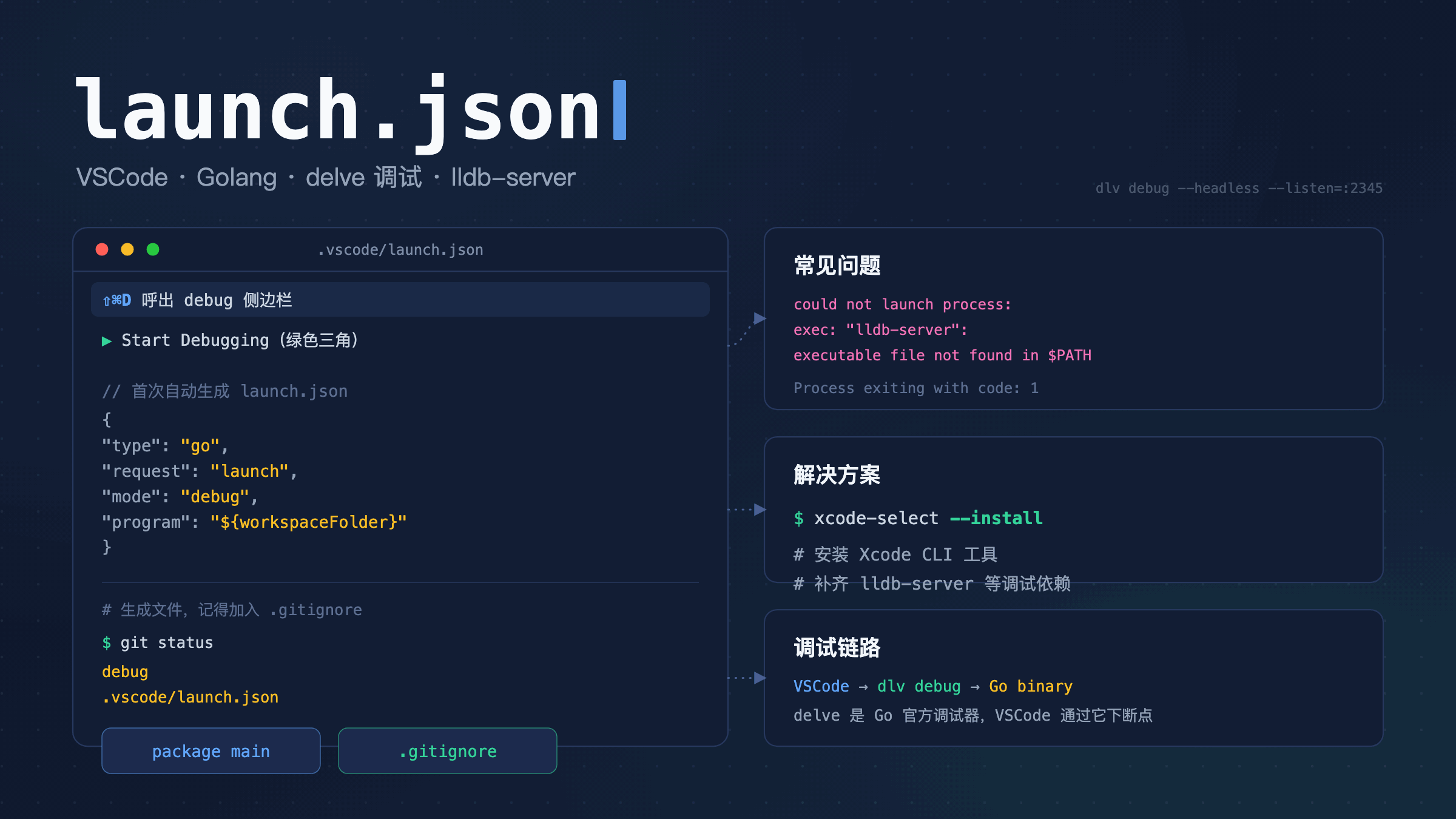
package main的文件(Shift) ⇧ + (Command) ⌘ + D呼出debug侧边栏点击绿色三角形符号的
Start Debugging按钮第一次使用VSCode会自动判断你的语言类型,生产如下的一个
launch.josn文件
1
2
3
4
5
6
7
8
9
10
11
12
{
    "version": "0.2.0",
    "configurations": [
        {
            "name": "Launch",
            "type": "go",
            "request": "launch",
            "mode": "debug",
            "program": "${file}"
        }
    ]
}
- 成功之后会在你所在的项目目录下生产如下2个文件
1
2
debug
.vscode/launch.json
git status也能看到他们,所以别忘了把他们加到.gitignore文件中去哦
1
2
3
Untracked files:
	debug
	.vscode/launch.json
当然你也有可能和我一样遇到如下问题:
1
2
3
4
2017/11/24 15:34:15 server.go:73: Using API v1
2017/11/24 15:34:15 debugger.go:96: launching process with args: [/Users/sean/Code/Go/src/go_bms_web/debug]
could not launch process: exec: "lldb-server": executable file not found in $PATH
Process exiting with code: 1
没关系,在terminal中执行如下语句,就可以了
1
xcode-select --install
本文由作者按照 CC BY 4.0 进行授权